Stop manually sharing every blog post — let infinity do it for you
Stop manually sharing every blog post — let infinity do it for you
You wrote the post. You hit publish. And then — you open Instagram, copy the link, write a caption, post it. Then Facebook. Maybe later you get to a third channel if you remember.
That little routine adds up fast. And it's one of those tasks that slides to the bottom of the list when you're in the middle of showings, offer negotiations, and follow-up calls. Which means your blog content just sits there, unseen, doing nothing.
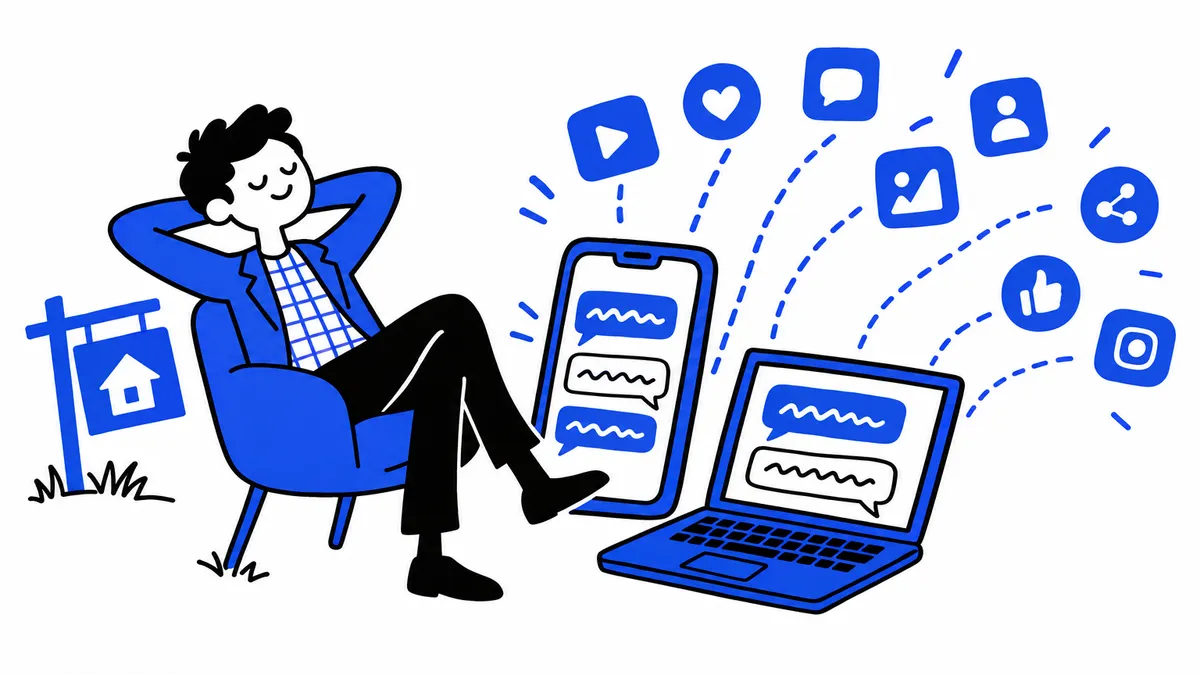
There's a simpler way. With infinity's social media management, you can connect your blog so that every new post you publish automatically gets shared to your connected social channels. One publish, multiple channels, zero extra steps.
Why real estate agents stop promoting their own content
Most agents who write blog posts — neighborhood guides, market updates, buyer FAQs — already understand that content builds trust over time. The problem isn't the writing. It's what happens after.
Manually cross-posting to every social channel after each publish is real friction. It's not difficult, exactly. It's just one more thing on the list. So the post goes live, the social promotion doesn't happen, and the content never reaches anyone who might actually turn into a lead.
Automating that step removes the friction entirely. You write once, and the distribution takes care of itself.
How automatic blog-to-social sharing works in infinity
Inside infinity's social media management tools, you can connect an RSS feed from your blog to your social posting schedule. Once that connection is in place, whenever a new post is published on your blog, a social post gets created and queued automatically — pulled directly from your latest content.
You set it up once. After that, your blog and your social channels work together without you touching anything.
The basic setup flow
- Navigate to the social media management area inside your infinity account.
- Find the RSS or feed-based posting option in the social planner settings.
- Enter your blog's RSS feed URL — typically found at your blog domain followed by
/rssor/feed. - Choose which connected social accounts should receive the auto-post (Facebook page, Instagram profile, or both).
- Set your timing preference — post immediately when a new article goes live, or queue it into a scheduled time slot.
- Save the connection, then publish your next blog post to confirm it works.
What this actually looks like for a real estate agent
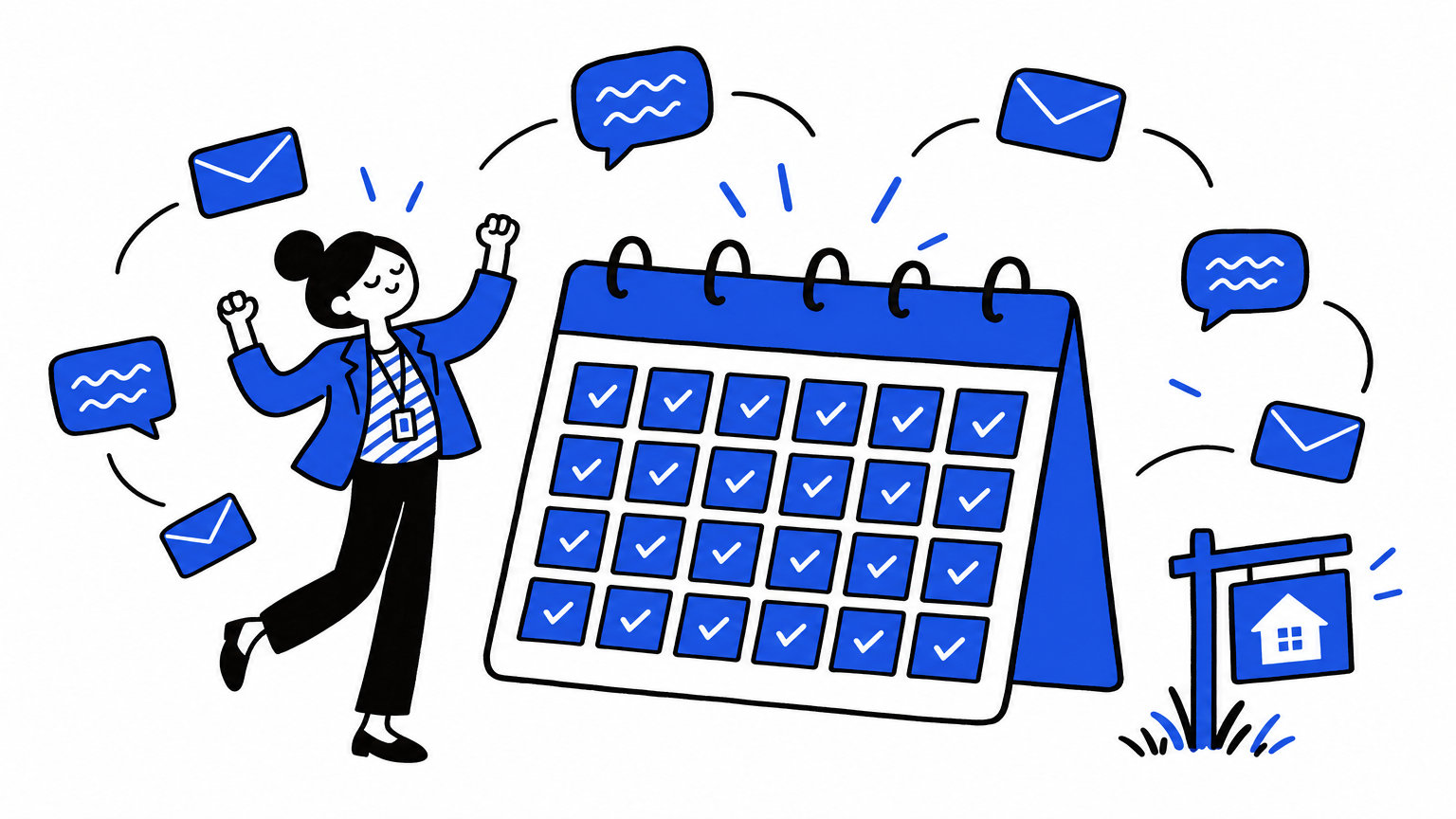
Say you publish a neighborhood guide on a Tuesday morning — a detailed walkthrough of a community you specialize in, covering local schools, commute times, and what buyers tend to love about living there. The post goes live on your blog.
If you have the RSS connection set up in infinity, that same content is automatically queued as a social post and goes out to your Facebook page and Instagram profile without you doing a thing. Your followers see it. Someone who's been thinking about that area taps the link, reads the full post, and fills out your home valuation form at the bottom.
Same outcome you'd get from manually cross-posting. You just didn't have to do the work twice.
Which social channels does this work with?
infinity's social media management supports connected Facebook and Instagram accounts. Once your pages and profiles are linked inside your account, the auto-share feature can push new blog content to both channels from a single setup.
If you haven't connected your social accounts yet, that's the first step — link them inside infinity's social planner, then configure the feed connection from there.
A few things worth knowing before you set it up
- Your blog needs an RSS feed. Most blog platforms generate one automatically. If your blog lives on your infinity site, the support team can confirm your feed URL — or raise it on the free 1-on-1 setup call that comes with your account.
- You control the timing. Posts can go out immediately on publish or queue into a scheduled window so they land when your audience is most active.
- Captions are flexible. The auto-created social post pulls your blog title, a content snippet, and the featured image by default. You can also customize the caption if you want a more tailored message for each platform.
- You still write the content. This feature handles distribution, not creation. The writing is still yours — but at least you only have to do it once.
Pair this with infinity AI Follow Up for a full content loop
The social post gets someone to your blog. The blog gets them to a lead form or a direct message. And infinity's AI Follow Up picks up from there — sending a personalized response automatically so the conversation starts right away, even if you're deep in a showing.
When all three are connected — content, distribution, and follow-up — you're running a system, not just doing tasks. That's a different kind of operation, especially for a solo agent or a small team trying to grow without adding hours to the day.
See the full picture at infinityai.app/pricing.
Frequently asked questions
Can I automatically share blog posts to social media as a real estate agent?
Yes. With infinity's social media management tools, you can connect your blog's RSS feed to your social accounts. Every time you publish a new post, a social share is automatically created and queued — no manual posting needed.
Does this work with both Facebook and Instagram?
Yes. infinity supports connected Facebook pages and Instagram profiles. Once linked, your auto-shared blog posts can go to both channels from a single setup inside your account.
Do I have to post on social media separately every time I publish a blog post?
Not if you use infinity's RSS-to-social connection. Set it up once and each new post distributes automatically to your connected social accounts on the schedule you choose.
What content gets pulled into the auto-created social post?
By default, the social post pulls your blog post title, a content snippet, and the featured image. You can also customize the caption manually if you prefer a tailored message for each channel.
Want to get this set up for your business? Book a free demo and we'll walk you through the whole workflow.