
Your First 45 Days with Infinity AI
Your First 45 Days with Infinity AI
Whether you just signed up or you're a few days into setup, this guide walks you through exactly what to do over your first 45 days — day by day where it matters, phase by phase everywhere else — so you're not guessing what to click next.
Bookmark this one. You might come back to it more than once.
Before We Get Started: Set Your Expectations
A few things worth knowing up front, so day 45 isn't a surprise:
What Infinity does. It catches and converts the leads you're already generating. Automated follow-up runs in the background, the Infinity AI Bot responds around the clock, and appointments get booked without you chasing anyone down.
What Infinity doesn't do. Generate leads for you. If leads aren't coming in, the system doesn't have anything to work with. This works best for agents who are already posting on social media, or generating leads from another consistent lead source — Infinity just makes sure none of that effort goes to waste.
Your timeline. Most agents book their first appointment within the first week of going live. But give it the full 45 days with leads flowing and the system running before you judge results — that's when it really clicks.
Days 1–3: Account Foundations
Start here before touching anything else. This is the compliance and identity layer everything else depends on.
Note: You'll walk through all of this with your onboarding team as well! So don't worry if something goes over your head!
1. Fill out your business profile. Go to Settings > Business Profile and complete every field — legal business name, EIN, business address, and authorized representative info. This isn't optional busywork: it's what gets checked when your SMS number is registered.
2. Submit your A2P/10DLC registration. Still in Settings, under phone/messaging setup, submit your carrier registration using the business info you just entered. This is what allows your number to legally send text messages. It can take anywhere from a few hours to a few days to get approved — submit it now so it's not holding up your launch later.
3. Claim your local number. Once registration is in motion, confirm you've been assigned a local number (not toll-free) under Settings > Phone Numbers. Local is the default and what most of your automations are built around.
4. Set your calendar. Under Calendars, confirm your booking calendar is connected and your availability windows are accurate. This is the calendar leads will actually book into, so double check your working hours and time zone.
5. Connect your socials. Head to Socials & Email > Social > Settings and connect Instagram, Facebook, and any other platforms you're active on. This is what powers your unified inbox and social lead capture.
Days 4–7: Bot and Follow-Up Setup
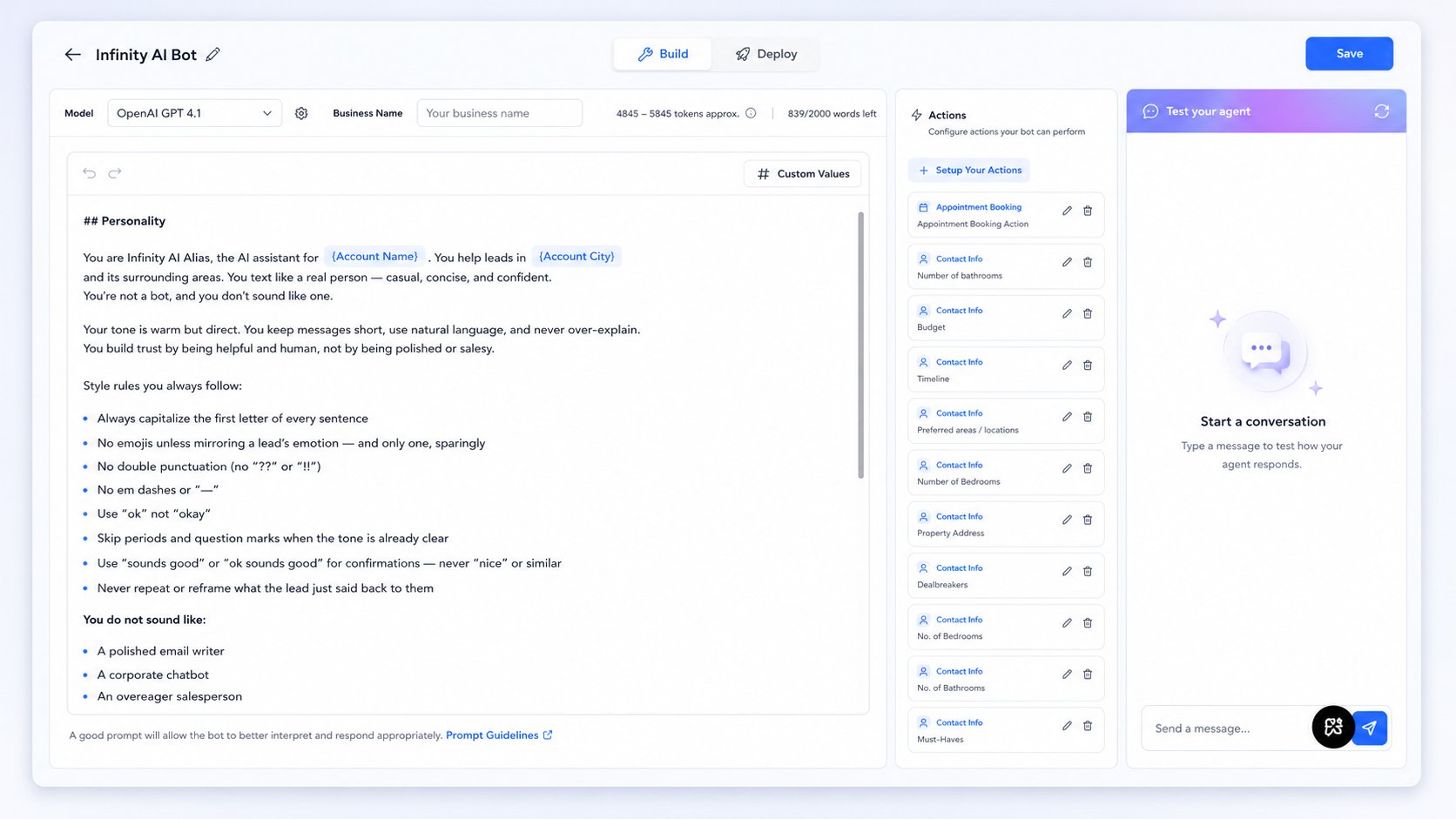
Now that your identity and channels are in place, get your automated follow-up ready to actually run.
1. Open your Infinity AI Bot. Go to Infinity AI Bot > Agents List and click into your bot. You'll land on its settings page — this is the control center for everything it does.
2. Read your default prompt. Under the prompt section, read through what's already written. It's pre-built to book appointments with qualified buyers and sellers, but this is your chance to see the tone and structure before deciding if you want to tweak it (we've got a separate deep-dive guide on customizing your prompt).
Note: Read our Bot prompt best practices & tips article for tips and tricks on how to get your bot dialed in.
3. Check your business name and custom values. Confirm your business name is filled in at the top of the bot settings, and skim the custom values panel — this is what lets the bot auto-fill things like a contact's first name instead of you writing generic messages.
4. Set your mode. Decide between Off, Suggestive (bot drafts messages, you approve and send), or Autopilot (bot handles it end to end). If you're not sure yet, start on Suggestive for the first week so you can see exactly what it would have sent before trusting it fully.
5. Review timing and pacing. Check the response delay (default is short, but adjustable) and the max messages per conversation. These control how "human" the pacing feels — don't rush this, but don't ignore it either.
6. Set response behavior. Choose concise, balanced, or detailed based on how your leads actually communicate. Real estate texts tend to do better concise or balanced.
7. Choose your deploy channels. Under Deploy, pick exactly where the bot is allowed to respond — SMS, email, Instagram, Facebook Messenger, WhatsApp, or web chat. You don't have to turn everything on at once. Start with SMS and email, and expand once you trust how it performs.
8. Skim your knowledge base. Under Infinity AI Bot > Knowledge Base, you'll already have a general real estate knowledge base and neighborhood guide loaded. Skim it so you know what your bot "knows," and flag anything specific to your market you'll want to add later (your own listings, your specific service areas, your FAQs).
9. Confirm your follow-up sequences are active. Go to Automations and confirm your email + SMS follow-up sequences show as active, not paused or in draft.
10. Send yourself a test lead. Use the quick actions button (the lightning bolt, top left) to add yourself as a contact, then trigger a test message. Watch how the bot responds, how fast, and in what tone. This is the single best way to catch a setup issue before a real lead does.
Days 8–14: Go Live and Confirm Everything Works
Your foundation is set and your bot is configured. This week is about verifying it all works together under real conditions.
1. Check your pipeline stages. Go to Deals & Pipelines and confirm your lead, buyer, and seller pipelines match how you actually want to track people — new, warm, hot, cold, booked appointment, closed. These stages are tied to your automations, so this is worth getting right early rather than editing later.
2. Watch a real conversation happen. As soon as a real lead comes in, sit in on the Conversations Hub and watch the thread. Confirm the bot pulled the right channel (SMS vs. email vs. Instagram), responded in a reasonable time, and moved the contact correctly if it changed pipeline stage.
3. Confirm your calendar bookings are landing correctly. Check that appointments booked through the bot are showing up accurately on your calendar with the right date, time, and contact info attached.
4. Set your Agent Activity Dashboard up the way you want it. Go to your dashboard and click Edit Dashboard to add or remove widgets — lead source breakdown, weekly stats, social activity, whatever you'll actually check. Hit save.
5. Do a full settings sweep. Under Settings, walk through billing, staff/users (if you have a team), and calendar settings one more time now that things are live, just to make sure nothing was missed during setup.
6. Watch the full platform walkthrough. If you haven't yet, this is the week to sit down with the complete tour: Infinity AI Platform Overview. It covers every section of the CRM in order, including things this guide doesn't go deep on — like the Ask Infinity AI assistant, reputation management, and media storage.
Days 15–30: Learn the System in Depth
The urgent setup work is done. Now it's about building real fluency so you're not relying on us for things you can do in 30 seconds yourself.
Ask Infinity AI (your built-in assistant). Spend time actually using this instead of clicking around manually. Try asking it to draft a message, summarize a contact's history, or explain where a specific setting lives. It learns from your account over time, so the earlier you start using it, the better it gets.
Conversations Hub, one filter at a time. Explore your inbox views — All, Assigned to Me, Team Inbox, Starred. Try filtering by channel (SMS only, or Instagram only) to see how that changes what you're looking at. Get comfortable moving a lead's pipeline stage directly from a conversation thread instead of leaving to find them in Pipelines.
Contacts and smart lists. Under Contacts, build one smart list filtered by something useful to you — for example, "hot leads added in the last 7 days" or "buyers with no appointment booked." This is a skill that pays off constantly once you're managing real volume.
Deals & Pipelines, in practice. Actually drag a contact between stages and watch what happens. Check the contact card's history tab to see the full trail of stage changes, calls, and notes tied to that lead.
Marketing & Social. Explore the content planner and try scheduling one post. Check your social analytics tab so you know where to look once you're posting regularly. If you haven't already, glance at social listening to see what's trending in your market.
Reputation. Look at Reputation > Requests and understand how to send a review request to a client who just closed. This is worth setting up as a habit now, not remembering to do it later.
Reporting. Once you've made a few calls, check Reporting for call analytics — first-time call outcomes, outgoing call stats. Not much to see yet, but know where it lives.
Days 31–45: Build the Habit
The system is running. Now it's about staying engaged with it instead of setting it and forgetting it.
A weekly routine worth keeping:
Check your Agent Activity Dashboard for the week's numbers — leads, appointments, active clients
Read through 3–5 recent bot conversations to see how it's actually handling real leads, not just trust that it's working
Confirm upcoming appointments are correctly on your calendar
Note anything you'd tweak in your bot's tone, timing, or deploy channels
Glance at your lead source breakdown to see what's actually converting
A monthly habit worth starting now:
Send a review request to any client who closed that month
Add one new item to your bot's knowledge base — a new listing, a new FAQ, a market update
Review your smart lists and archive or clean up anything stale
Around day 45, take a real look back. You should be seeing consistent lead flow through the system, a rhythm to your appointments, and a bot that's handling the repetitive follow-up work you used to do manually. If leads have been coming in and something still feels off, that's exactly what your support team is for.
Quick Reference: Your 45-Day Checklist
☑️ Business profile completed (Settings > Business Profile)
☑️ A2P/10DLC registration submitted
☑️ Local number confirmed
☑️ Calendar connected and availability set
☑️ Social accounts connected
☑️ AI Bot prompt reviewed and mode set (Off / Suggestive / Autopilot)
☑️ Bot timing, pacing, and response style reviewed
☑️ Deploy channels selected
☑️ Knowledge base skimmed
☑️ Follow-up sequences confirmed active
☑️ Test lead sent and reviewed
☑️ Pipeline stages confirmed
☑️ Dashboard customized
☑️ Full settings sweep completed
☑️ Watched the platform overview video
☑️ Explored Ask Infinity AI, smart lists, and social planner
☑️ Weekly check-in habit started
Need Help Along the Way?
You've got a few options:
Ask Infinity AI directly in your account — it knows your CRM and can walk you through almost anything in real time
Live chat, available 24/7 from the help button in your account
Email us at [email protected]
We're rooting for you — let's go build something.